1. Shipping Carrier Introduction
A shipping carrier is a company responsible for transporting goods from one location to another, ensuring timely and secure delivery. Businesses rely on shipping carriers to streamline logistics, reduce transit times, and provide tracking visibility for their shipments.
Choosing the right shipping carrier is essential for efficient supply chain management. Factors such as cost, delivery speed, service reliability, and coverage area play a significant role in selecting a carrier. Many carriers also offer specialized services to meet specific shipping needs, including express delivery, freight forwarding, and last-mile delivery.
This guide overviews shipping carriers, their functions, and key considerations for selecting carriers.
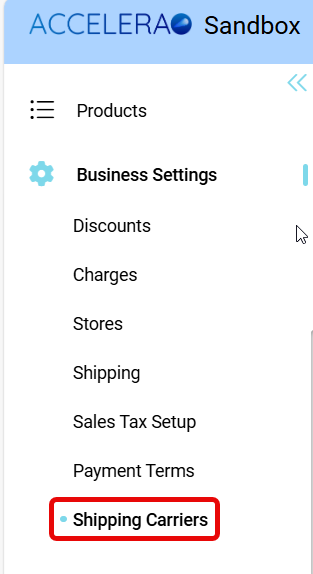
- Go to Administration
- Click on Business Settings
- Click on Shipping Carriers under Business Settings Action
2. Key features of the Shipping Carriers tab

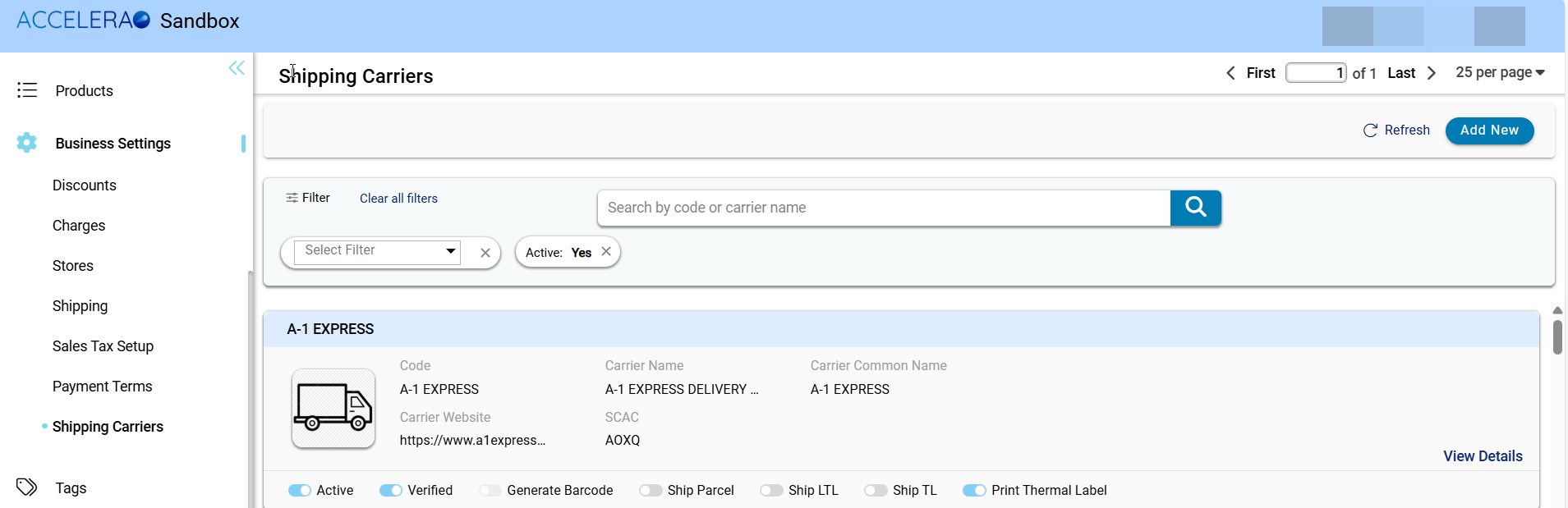
- Search Bar: The search bar enables users to find a shipping carrier using its code or name. Entering relevant keywords allows quick retrieval of carrier details from the list. The search functionality improves usability by reducing the time required to locate specific carriers.
- Filter Options: The filter dropdown helps users find the right shipping carriers quickly. The only filter available is "Active," which narrows the list to show only active carriers. To reset the filter and see all available shipping carriers again, users can click on "Clear All Filters." This feature allows users to find active carriers efficiently without scrolling through the entire list.
- Active Status Toggle: The active status toggle allows users to filter carriers based on their current activation status. If set to "Yes," only active carriers are displayed in the list. This feature helps users focus on carriers that are available for use in shipping operations. Adjusting the toggle to a different value updates the displayed results accordingly.
- Pagination Controls: The pagination section at the top-right corner enables navigation through multiple pages of shipping carriers. Users can use the available controls to move to the first, last, previous, or next page. The page number is displayed in an editable field, allowing users to jump to a specific page. The dropdown menu lets users adjust the number of entries displayed per page, improving visibility and accessibility. These controls ensure smooth navigation through large datasets.
- Refresh Button: The Refresh button updates the shipping carriers list by reloading the latest data. Clicking this button ensures that any recent changes, such as adding or modifying carriers, are reflected in real-time. It helps users stay updated with the most current carrier information.
- Add New Button: The "Add New" button lets users create a new shipping carrier entry in the system. When users click this button, they go to a form where they can fill out the details about the new carrier. It helps users add new carriers to their shipping operations easily.
3. Shipping Carrier Overview:

- Code Field: The code is the unique ID for the shipping carrier. It helps tell this carrier apart from others in the system and is essential for processing, automation, and reports.
- Carrier Name: The carrier name field specifies the full registered name of the shipping service provider.
- Carrier Common Name Field: A carrier's common name is a shorter version of its official name, making it easier for users to recognize and remember.
- Carrier Website Field: The carrier website field contains the URL to the official website of the shipping provider.
- SCAC Field: The Standard Carrier Alpha Code (SCAC) is a four-letter code used to identify carriers in logistics and transportation systems.
- Toggle Options and Attributes: Several toggles and attributes are displayed, indicating carrier capabilities and settings. These toggles allow users to enable or disable specific functionalities related to shipment handling.
-
Active: Indicates whether the carrier is available for use within the system. If turned on, the carrier is operational and selectable for shipments.
-
Verified:Checks if the carrier is validated in the system. A verified status confirms reliability and compliance.
-
Generate Barcode: When a shipment tracking number is available and this option is enabled, a barcode will be automatically generated for tracking and identification.
-
Ship Parcel: In a sales order, when the shipping channel is set as primary, only carriers that allow parcel shipping will be shown in the "Select Shipping Carrier" dropdown. This list appears on the sales app page in the Rapid Checkout section. The system filters carriers based on whether they support parcel shipments. This helps users quickly choose the right carrier for their shipment. Selecting a valid carrier ensures smooth processing and delivery of the parcel.
-
Ship LTL: Refers to Less-Than-Truckload (LTL) shipping, which is used for shipments that do not require a full truck. If enabled, the carrier provides LTL shipping services.
-
Ship TL: Indicates Full Truckload (TL) shipping availability. If turned on, the carrier can handle shipments that require an entire truck for transport.
-
Print Thermal Label: The Print Thermal Label option determines the format in which the shipping label PDF will be generated. If this option is enabled, the system will generate the label in a 4x6-inch format, which is optimized for thermal printers commonly used in warehouses and shipping operations. This setting ensures that labels are printed in a format that matches the carrier’s requirements and the shipping process's operational needs.

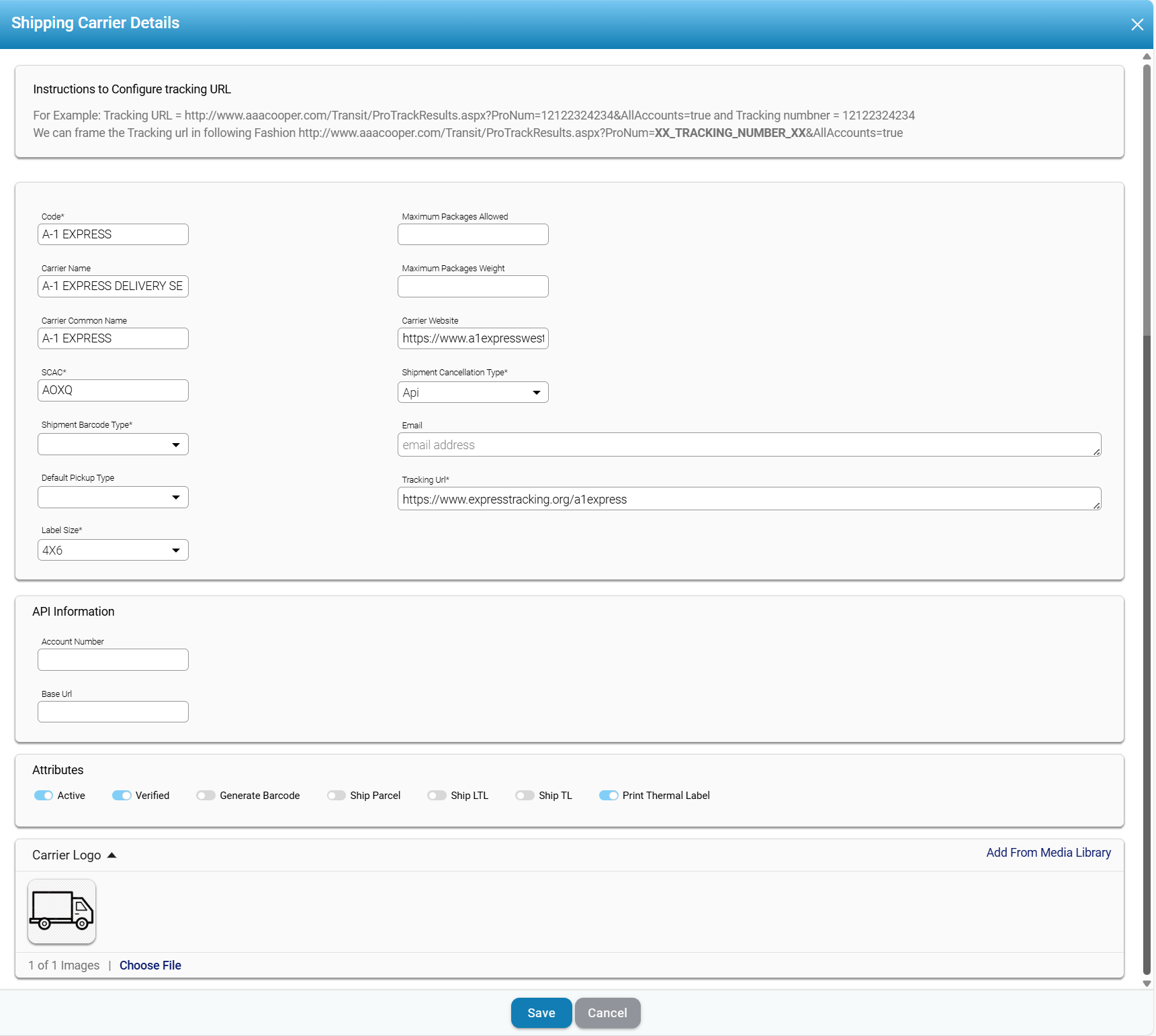
The image displays a Shipping Carrier Details configuration screen, which allows users to input and manage details related to a shipping carrier.
- Code: This field specifies the carrier’s code, which helps identify the shipping carrier. The code acts as a reference in the system to associate shipments with a specific carrier. The entered value ensures that the shipping software correctly links shipments to the designated carrier.
- Carrier Name: The Carrier Name field represents the official name of the shipping service provider. It is displayed on shipping documents, tracking systems, and logistics management software.
- Carrier Common Name: This field captures an alternative or simplified name for the carrier. It allows users to enter an easily recognizable version of the carrier’s name for operational convenience.
- SCAC: SCAC (Standard Carrier Alpha Code) is a standardized code used to identify transportation companies. It is widely used in logistics, customs clearance, and freight management. Entering the correct SCAC ensures proper documentation and smooth processing of shipments. Many transportation systems and regulatory bodies require this shipment tracking and billing code.
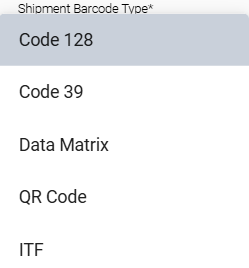
- Shipment Barcode Type: This field defines the format of barcodes used for shipment tracking. It specifies how barcodes will be generated and printed for shipping labels. Choosing the correct barcode type ensures compatibility with scanning systems used in warehouses and delivery centers.
-
- Default Pickup Type: This field determines the standard method by which shipments are picked up by the carrier. It ensures that the appropriate pickup service is applied when generating shipping labels or scheduling shipments.
- Label Size: The Label Size setting defines how big the shipping label will be when the Print Thermal Label option is off. You can choose from three sizes: A4, which is a common international paper size; US Letter, used mainly in North America; and 4x6 inches, made for shipping label printers. The size you choose affects how the label appears and prints, making sure it works well with different printers and layouts.
- Maximum Packages Allowed: This field defines the highest number of packages that can be included in a single shipment. It helps in preventing overloading and ensures compliance with carrier policies. Configuring this field properly optimizes the shipping process and avoids extra fees. If the limit is exceeded, users may need to split shipments into multiple orders.
- Maximum Package Weight: This field specifies the weight limit for individual packages within a shipment. It ensures compliance with carrier weight restrictions to avoid penalties or shipment rejection.
- Carrier Website: The Carrier Website field contains the official website link of the shipping carrier. It allows users to access additional services such as tracking, support, and account management. Providing the correct URL ensures users can navigate directly to the carrier’s resources without manual searching.
- Shipment Cancellation Type: This field defines how shipments can be canceled within the system. The selected option determines whether cancellations are handled manually, through an automated API, or via another method which is email.
- Email: The Email field is required if the Shipment Cancellation Type is set to "Email." In this case, the system mandates an email address to process shipment cancellations via email communication.
- Tracking URL: This field contains the direct tracking link for shipments processed by the carrier. The link allows users and customers to track their shipments in real time. Proper configuration of this URL ensures that tracking updates are accessible without manual intervention.
- API Information: The API Information section is used to integrate the shipping carrier with external systems. It may include an Account Number and Base URL for API authentication and data exchange. Configuring API details allows automated shipment processing and tracking. Businesses using automated shipping platforms rely on API connections for efficiency.
- Attributes: The Attributes section contains multiple toggle options for carrier-related features. These attributes may include settings like Active, Verified, Generate Barcode, Ship Parcel, Ship LTL, Ship TL, and Print Thermal Label. Each option enables or disables a specific function related to the carrier, as explained above.
- Carrier Logo: This section allows users to upload or select an image representing the carrier. The logo is displayed in shipping documents and internal systems for easy recognition. Providing a logo helps users quickly identify the carrier within the software interface. The option to Choose File or Add From Media Library ensures flexibility in selecting the appropriate image.
- Save and Cancel Buttons: The Save button confirms and applies the entered shipping carrier details. Clicking this button ensures that all configurations are stored for future shipments. The Cancel button discards any changes made without saving them.

Comments
0 comments
Please sign in to leave a comment.